Enhance Your HP Laptop Experience with a Docking Station
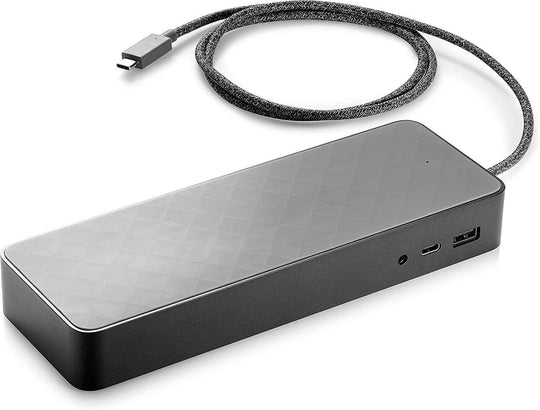
In today’s fast-paced digital environment, an HP laptop serves as a versatile tool for both personal and professional tasks. However, maximizing its capabilities can sometimes be challenging, especially when dealing with peripheral devices, multiple displays, or power management. An effective solution to these challenges is using a docking station, which extends the functionality of your HP laptop, offering a seamless transition from mobile to desktop use. This article explores how a docking station enhances your HP laptop experience, ensuring productivity and convenience.
Understanding the Benefits of a Docking Station
A docking station is an essential accessory for tech-savvy individuals who require a comprehensive setup for both work and play. Here’s why:
- Increased Connectivity: A docking station provides multiple ports, allowing you to connect to several devices simultaneously. This includes monitors, keyboards, mice, printers, and external storage devices.
- Enhanced Ergonomics: By connecting your laptop to external monitors and keyboards, you can create a more ergonomic workspace, reducing strain on your neck and eyes.
- Efficient Charging: Many docking stations come with power delivery capabilities, ensuring your laptop and other devices are charged efficiently while in use.
- Seamless Transition: With a single connection, switch from a mobile setup to a fully-equipped desktop environment, saving time and effort.
Choosing the Right Docking Station for Your HP Laptop
Selecting the appropriate HP laptop docking station involves considering various factors to ensure compatibility and performance:
Compatibility with Your Device
Ensure the docking station supports your HP laptop’s model and specifications. Consider:
- Port Types: Identify the types of ports available on your laptop (USB-C, Thunderbolt, etc.) and ensure the docking station supports them.
- Power Delivery: Check if the docking station provides adequate power supply for your laptop model.
- Operating System: Confirm compatibility with your laptop’s operating system for optimal performance.
Number of Devices to Connect
Determine the number of peripherals you plan to connect. Look for docking stations with ample port options to accommodate your needs:
- Multiple USB ports for external drives and devices
- HDMI and DisplayPort for external monitors
- Ethernet port for stable internet connections
Setting Up Your Docking Station
Once you’ve selected the perfect docking station, setting it up is straightforward. Follow these general steps:
- Connect the docking station to your HP laptop using the appropriate cable.
- Attach external devices such as monitors, keyboards, and mice to the docking station.
- Ensure the docking station is connected to a power source if it provides charging capabilities.
- Adjust the display settings on your laptop to utilize multiple monitors if applicable.
Maximizing Productivity with a Docking Station
With a docking station, elevate your productivity levels by creating a dynamic and efficient workspace. Here are some tips:
- Utilize multiple monitors for multitasking and enhanced workflow.
- Organize your workspace by placing devices and peripherals within easy reach.
- Leverage the power of a stable internet connection via the Ethernet port for seamless online operations.
Conclusion
Integrating a docking station into your HP laptop setup can significantly enhance your computing experience. From increased connectivity and efficient charging to an ergonomic workspace, the advantages are undeniable. By choosing the right HP laptop docking station, you ensure that your device reaches its full potential, providing a seamless transition between different environments and boosting productivity. Explore the variety of options available to find the perfect match for your needs and enjoy a more connected, efficient, and productive digital life.
